Smart TV Games With Phones: 4 Ways to Play Party Games on Your TV Without a Console (2026 Guide)
Play party games on your TV with phones as controllers: 4 setups for any TV, a which-TV-which-way table, 10 group games and a plan for your first game night.
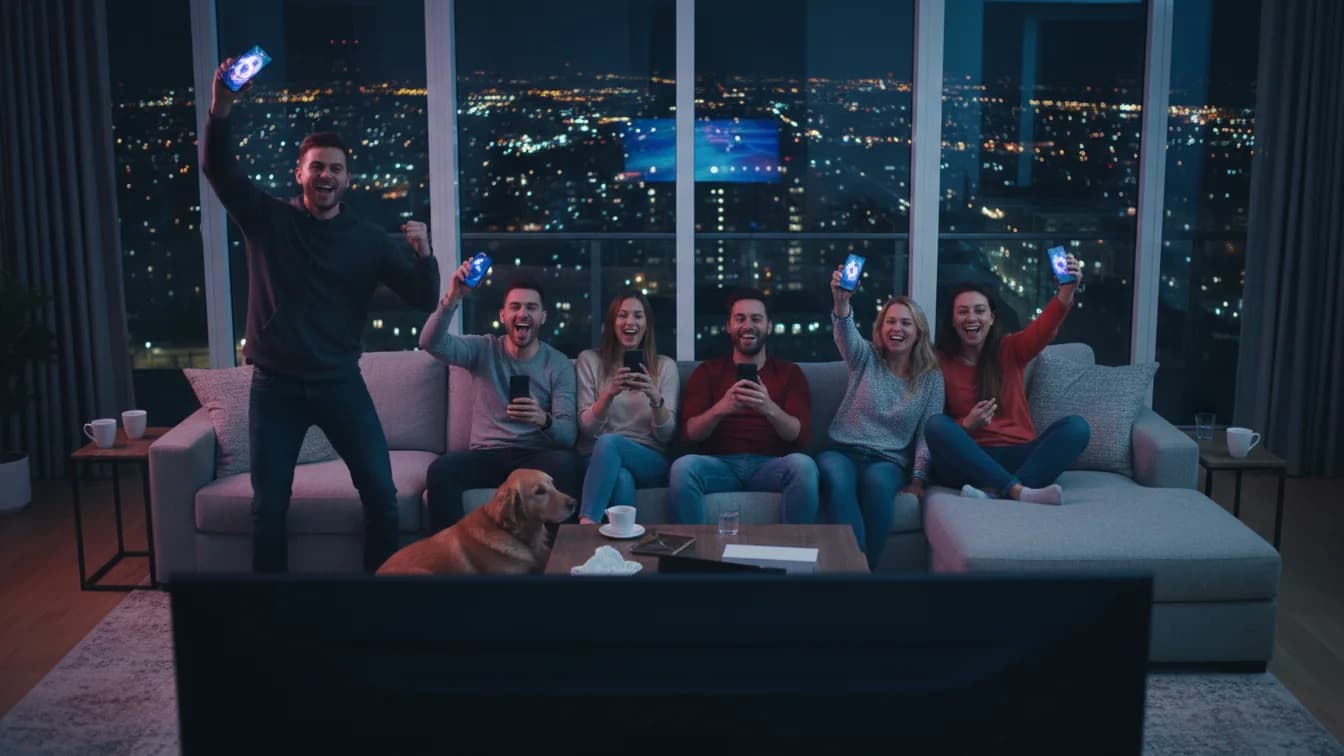
Every living room has one giant screen, and at most parties it plays a screensaver or a Spotify visualizer. Then someone says "let's play something on the TV" and the hunt begins: the second controller is dead, the console needs an update, and half the group does not want to touch a gamepad anyway. Here is the thing: group games on a TV stopped needing a console a while ago. You need the screen, an internet connection and the phones your guests already carry.
This guide covers four ways to get party games on your TV without a console, a quick table that matches your TV to the easiest setup, what to do when the Wi-Fi is flaky, ten games you play on the TV with your phone, and a plan for the first night, including printable warm-up cards. It is written by people who run these nights every week and know exactly where they tend to break.
Party games on TV: the 4 setups
Most "smart TV games" guides answer a different question: how to play a big console game on your TV, usually through cloud gaming. That works for one person with a gamepad. A party needs something else, which is how many people can play at once. A gamepad is one player, a remote is one player, and phones are as many players as there are people on the couch.
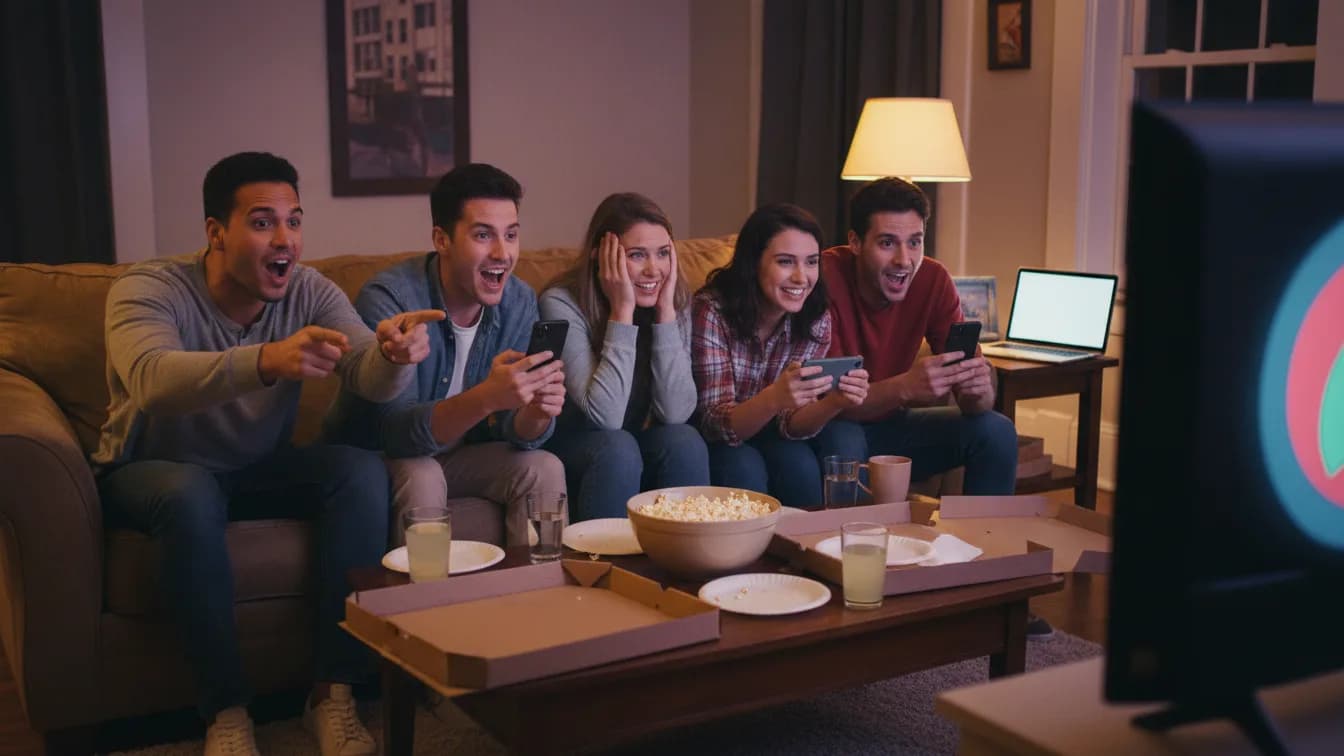
So all four setups below share the same idea: the TV shows the game and the phones are the controllers. The only difference is how the picture gets onto the screen.
The TV's web browser: open the game's website on the TV itself. Nothing to install, works on most internet-connected TVs.
An app from the TV's app store: install it once and launch it from the home screen like Netflix. The most convenient option for regular game nights.
Casting from your phone to a Chromecast: one tap in the phone app and the game shows up on the TV.
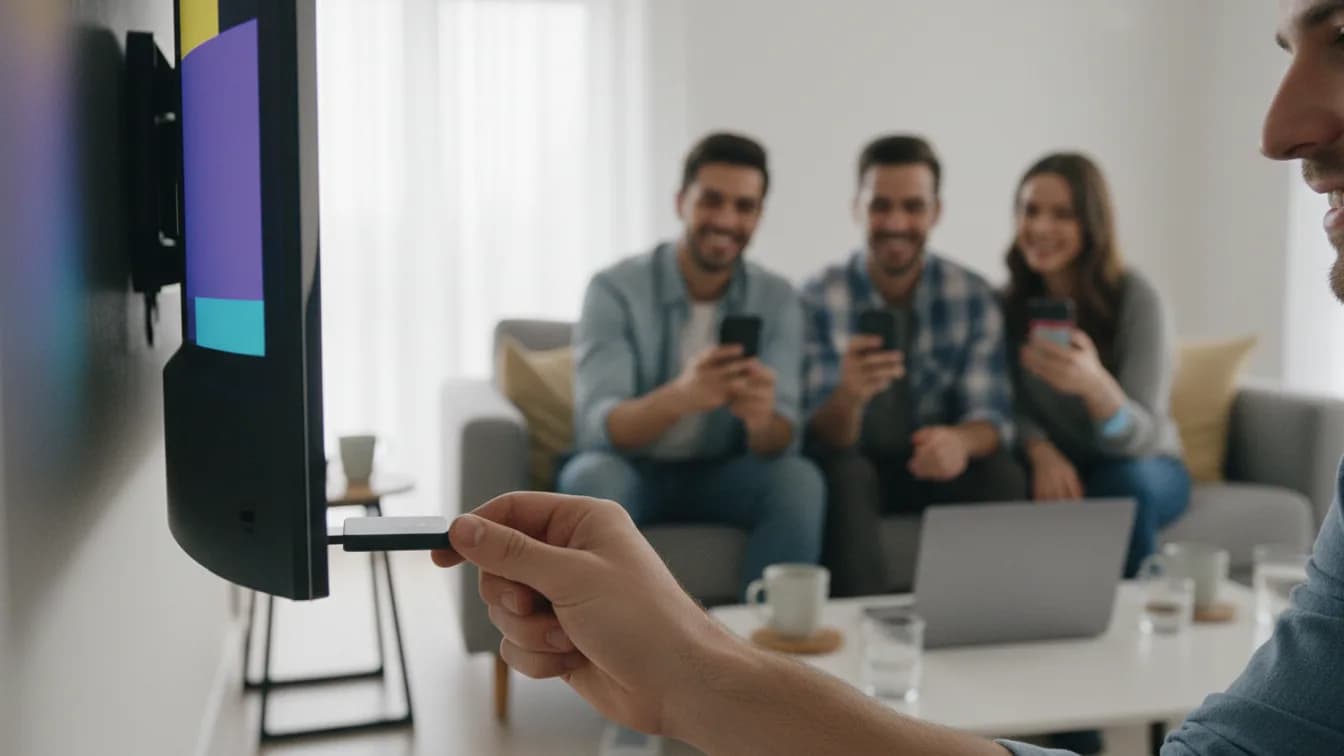
A laptop on an HDMI cable: the most reliable setup of all, works with any TV that has an HDMI port, smart or not.
Setup 1: play in the TV's browser
Built-in browser or a streaming stick: either way the game ends up on the big screen and the phones do the rest.
TV browsers can be slow, especially on sets that are a few years old. That is why Buzzin detects the TV and automatically sends older screens a streamed version: the game renders on our server and the TV receives a finished picture, the way it plays a video.
If your TV's browser simply refuses to cooperate, do not fight it. Setups 3 and 4 get you to the same place in two minutes.
1Turn on the TV and open its web browser. It is usually in the app list with a globe icon. On some Android TV and Google TV models you need to add a browser from Google Play first.
2Type tv.playbuzzin.com with the remote. Typing with a remote is tedious, so bookmark the page and you only do it once.
3Pick the game language on the TV. A room code and a QR code appear on the screen.
4Guests scan the QR code with their phone camera, or go to m.playbuzzin.com and type the room code. They enter a nickname and they are in.
5Once at least two players have joined, start the game. From then on the remote can stay on the coffee table: everything runs from the phones.
Setup 2: the BuzzinTV app on your smart TV
The app is the same game as the browser version, just one click away on the home screen. You install it once on the TV, and your guests still install nothing. Here is where it stands in the TV app stores as of October 2026:
LG (webOS 22 and newer, so models from 2022 on): BuzzinTV in the LG Content Store. Model years and the Jackbox situation on LG are covered in our guide to LG TV games without a console.
Android TV and Google TV (Sony, TCL and others): BuzzinTV on Google Play on the TV.
Amazon Fire TV and Fire TV Stick: BuzzinTV in the Amazon Appstore.
Philips TVs with Titan OS: BuzzinTV in the TV's app store.
Other smart TVs whose store does not carry BuzzinTV: the TV's browser (setup 1) or a laptop on HDMI (setup 4).
A TV without smart features: a Chromecast in the HDMI port (setup 3) or a laptop on a cable.
Can't find the app?
TV app stores show different apps depending on your country and your TV's model year. If search does not turn up BuzzinTV, do not waste the evening on it: the browser, a Chromecast or HDMI run exactly the same game.
Setups 3 and 4: cast from your phone or plug in a laptop
A laptop on an HDMI cable is the setup that never lets you down. Plug in the cable, open tv.playbuzzin.com in a normal browser on the laptop and go full screen. The TV becomes a monitor, so its brand, age and operating system stop mattering. It also works with a projector in a basement, a classroom or a conference room.
Two small things people forget: plug the laptop into its charger, because game night outlasts the battery, and turn off screen sleep. Sound should switch to the TV on its own. If it keeps coming out of the laptop speakers, set the audio output to HDMI.
1Get the Buzzin app on your phone from the App Store or Google Play. Only the person casting needs it. Everyone else plays in the browser.
2Make sure your phone and the Chromecast (or TV with Chromecast built in) are on the same Wi-Fi network.
3In the app, tap "Play on TV" and pick your TV or Chromecast from the list. It works with Chromecast devices and TVs with Chromecast built in, such as Android TV and Google TV sets.
4The game opens on the TV with a room code, and guests join the usual way: QR code or m.playbuzzin.com.
What the phone does, how many can play, and no Wi-Fi
Everyone looks at the same screen. That is the whole trick.
The phone is a control pad, not a second screen with the game on it. In the game show it shows four big colored answer buttons, a buzzer and the trick you use to slow down whoever is in the lead. Questions, characters, the host's voice and the scoreboard live on the TV, so everyone looks at one place. That is why people who "don't play video games" end up playing.
TV Show, our game show, takes 2 to 8 players, and Werewolves takes 5 to 16. For bigger groups, play in teams: one phone per team, and the team argues before anyone taps an answer. That is how it works at office holiday parties and at big family gatherings.
The TV needs internet, over Wi-Fi or an Ethernet cable. The cable is the safer bet if the router is nearby.
Guests' phones do not have to be on your Wi-Fi. They join over the internet, so mobile data is enough and nobody has to spell out your password.
The exception is casting: the phone that sends the picture to a Chromecast has to be on the same network as the TV.
No Wi-Fi at all, say at a cabin? Turn on a hotspot on one phone and connect the TV or laptop to it. It works, but it eats data, so treat it as a one-night fix.
Free to print at home.
Guest card
Print it, fill it in, leave it by the TV
1.Wi-Fi network name (only if someone prefers Wi-Fi to mobile data)
2.Wi-Fi password
3.On your phone: scan the QR code on the TV or go to m.playbuzzin.com
4.Room code from the screen
5.Your nickname (keep it short so it fits on screen)
6.Your team or color
7.Who is in charge of the remote tonight
8.Tonight's game order
playbuzzin.com · Start it on the TV, the rest is in your pocket
At a party the best graphics never win. The game that wins is the one your aunt and your brother-in-law who "doesn't do games" both join.
Your TV: the easiest way in
If you skipped everything above, find your TV in this list. Every route ends the same way: a code on the screen and your guests' phones as controllers.
LG from 2022 or newer (webOS 22+): the BuzzinTV app from the LG Content Store.
LG from 2019 to 2021: the webOS browser, a Chromecast plugged into HDMI, or a laptop.
Sony, TCL and others with Android TV or Google TV: the BuzzinTV app from Google Play, or "Play on TV" from your phone.
Philips with Titan OS: the BuzzinTV app from the TV's app store.
Any TV with a Fire TV Stick: the BuzzinTV app from the Amazon Appstore.
Any other smart TV without BuzzinTV in its store: the TV's browser or a laptop on HDMI.
Any TV with a Chromecast plugged in: the Buzzin phone app and the "Play on TV" button.
An older non-smart TV or a projector: a laptop on HDMI and tv.playbuzzin.com.
10 games to play on TV with your phone
Games you play on your phone and TV are a whole genre now, not a gimmick. Here are ten titles where everyone watches one screen and holds the controller in their pocket, with a note on where you can actually play each one. For a deeper comparison, see our ranking of the best party games for TV.
A quick word on Jackbox on smart TVs, since it is the question we get most: the full Party Packs run on consoles and computers, and a smaller selection sits inside the Netflix app. If you want more games in that style, we compared them in games like Jackbox.
TV Show (Buzzin): a voiced game show with categories, tricks and a final round, 2 to 8 players. Browser, BuzzinTV app or Chromecast.
Werewolves (Buzzin): a social deduction game for 5 to 16 people where the TV is the narrator and your phone quietly shows you your role.
Who Said That? (coming soon to Buzzin): a bluffing game in the spirit of Psych and Fibbage. Everyone writes a fake answer in someone else's style and the group guesses which one is real.
The Jackbox Party Pack: a series of packs with drawing, bluffing and trivia games. It reaches the TV from a computer on HDMI or from a console, and phones join at jackbox.tv.
The Jackbox Party Essentials on Netflix: Drawful 2, Fibbage 4 and Quiplash 3, included with the subscription in the Netflix app on your TV.
Pictionary: Game Night on Netflix: draw on your phone with a finger while everyone else guesses from the TV.
Boggle Party on Netflix: find words in a grid of letters, most words wins.
Party Crasher: Fool Your Friends on Netflix: a party game built around fooling the people on the couch next to you.
AirConsole: a collection of more than a hundred games where your phone is the gamepad. Runs in a browser and in an app on Android TV and Fire TV.
Kahoot!: the classroom and training classic. Show the questions on the TV from a laptop, players enter the PIN at kahoot.it. You write the questions yourself or pick a ready-made quiz.
Your first TV game night, step by step
The warm-up round has one more benefit: it shows you who in the group loves to compete and who would rather laugh from the sidelines. Put those two on the same team for the game show. For the warm-up and the rounds after it, our general knowledge questions and Family Feud questions are ready to read out.
1The day before: check which setup works on your TV and run a test game. Five minutes of testing saves half an hour of stress with guests watching.
2Before people arrive: turn on the TV, open the game so the room code is already on screen, and put the printed guest card next to the TV.
3First 10 minutes: the warm-up cards below. Read the questions out loud, whoever answers first keeps the card. People loosen up and latecomers have time to arrive.
4Then the game show on the TV, about 20 to 25 minutes. It is the best opener because the host explains the rules and nobody has to read a manual.
5Food break, then a game with more talking: Werewolves for a bigger group, a bluffing game for a smaller one.
6End with a rematch of whatever got the biggest laughs. Stop while everyone still wants one more round.
Free to print at home.
Warm-up round
12 easy questions for the first 10 minutes
Cut along the dashed lines. The answer is upside down at the bottom of each card.
USAplaybuzzin.com
How many stars are on the US flag?
50
Spaceplaybuzzin.com
What is the largest planet in our solar system?
Jupiter
Sportsplaybuzzin.com
How many players does a soccer team have on the field?
11
Geographyplaybuzzin.com
Which ocean is off the West Coast of the United States?
The Pacific
Artplaybuzzin.com
Who painted the Mona Lisa?
Leonardo da Vinci
Warm-upplaybuzzin.com
How many sides does a hexagon have?
Six
Geographyplaybuzzin.com
What is the capital of Canada?
Ottawa
Natureplaybuzzin.com
How many legs does a spider have?
Eight
Spaceplaybuzzin.com
Which planet is known as the Red Planet?
Mars
Historyplaybuzzin.com
In what year did people first walk on the Moon?
1969
Moviesplaybuzzin.com
What is the name of Dorothy's dog in The Wizard of Oz?
Toto
Musicplaybuzzin.com
How many keys does a standard piano have?
88
playbuzzin.com · Start it on the TV, the rest is in your pocket
Start it on the TV, the rest is in your pocket
Everything above boils down to one line: start it on the TV, the rest is in your pocket. No extra controllers, no apps for your guests, no rulebook to read out loud. Buzzin is a party game platform built around exactly that setup: the TV is the stage and the phones are the controllers.
Right now there are two games to play, the TV Show game show and Werewolves, both with a voiced host. Open tv.playbuzzin.com or the BuzzinTV app on your TV, your guests scan the code, and you are playing. To see how Buzzin stacks up against the other big-screen games, check the best party games for TV.
Tried it at home? Come say hi on our Discord and tell us what you liked and what we should make better. It is also the first place we announce when the bluffing game Who Said That? goes live.
Frequently asked questions
Can you play games on a smart TV without a console?
Yes. Party games run in the TV's browser, in apps from the TV's store (for example BuzzinTV on LG, Android TV, Google TV, Fire TV and Philips Titan OS), through a Chromecast, or from a laptop on HDMI. Each player's phone is the controller, so you need neither a console nor a gamepad.
How do you play games on your TV with your phone?
Open the game on the TV, for example tv.playbuzzin.com in the browser or the BuzzinTV app. A QR code and a room code appear on screen. Each player scans the code with their phone camera or types it at m.playbuzzin.com and starts playing right away, without downloading an app.
Do the phones have to be on the same Wi-Fi as the TV?
No, not when they join with the QR code or the room code. They connect over the internet, so mobile data works fine. Only the phone that casts the picture to a Chromecast has to be on the same network as the TV.
Can you play Jackbox on a smart TV?
Partly. The Netflix app on smart TVs includes The Jackbox Party Essentials with Drawful 2, Fibbage 4 and Quiplash 3. The full Jackbox Party Packs need a console or a computer connected to the TV. Browser-based party games like Buzzin run on the TV without either.
How many people can play on one TV?
It depends on the game: TV Show takes 2 to 8 players and Werewolves 5 to 16. Larger groups play in teams with one phone per team, so a single TV can easily host a party of thirty or forty people.
Written by
Eryk Kruk · Buzzin Founder
I build Buzzin and test every one of these games at my own game nights. Got a question about this piece, or an idea for the next one? Write me: contact@playbuzzin.com